Main Body
Chapter 10 • Animation
Animation has considerable power to catch readers’ attention, to entertain, and to illustrate mechanisms involving motion. Designers must be careful not to over-distract readers with repeating or obtrusive animations.
Three methods to animate with CSS styles include:
- CSS animation with no user interaction
- CSS animation with user interaction through the mouse-over (:hover) and click (:active) pseudoclasses
- CSS animation with JavaScript interaction
Requirements for CSS Animation
Animating a tag with CSS requires three components:
- an image or text object suitable for animating, often a transparent PNG or GIF like the car below
- a named @keyframes rule with major change points specified as percentages of completion
- a link in the tag’s CSS selector to the named @keyframes rule using the animation-name style
- an animation-duration style specifying the length of the animation
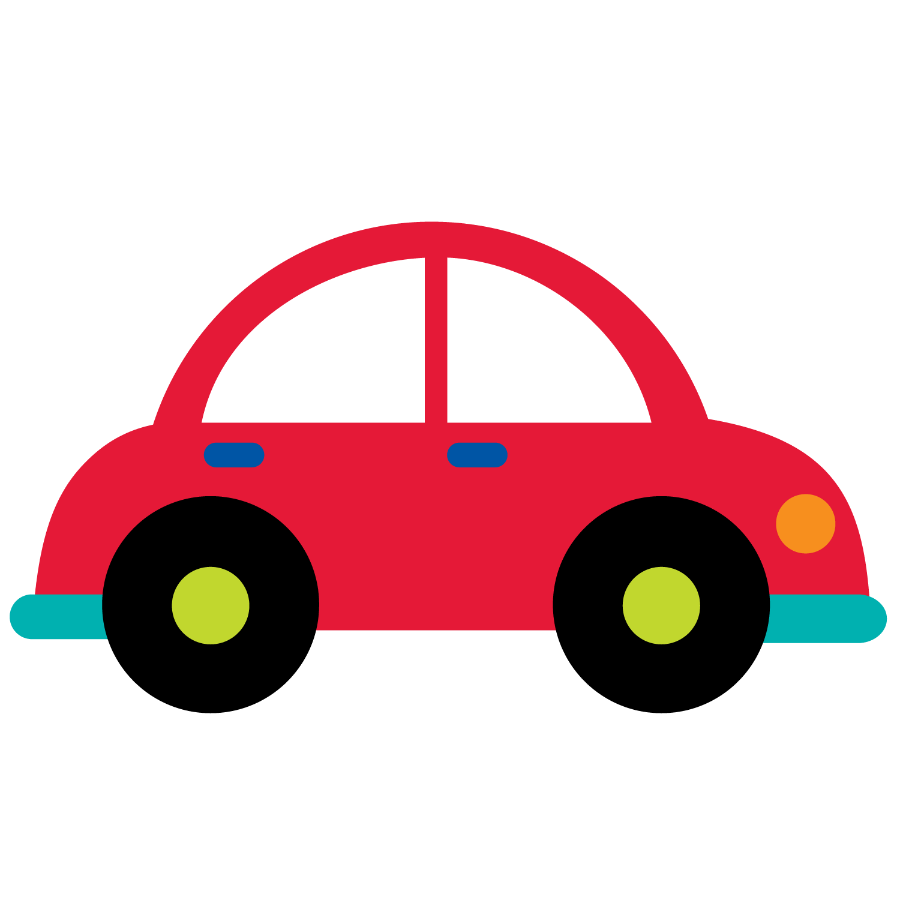
Example
Assume we want to animate the above car by having it accelerate and drive across the screen.
HTML for the car:
<img id="car" src="car.png" />
@keyframes rule for the car animation:
@keyframes letsgo {
    0% {left: 0;}
  100% {left: 120vw;} /* vw (viewport widths) units >100 position the tag off the page */
}
CSS for the car (remember that /* denotes comments that explain the style):
#car {
    width: 200px;
    position: relative; /* position must be declared even though "relative" is the default */
    left: 0;
    animation-name: letsgo; /* connects the car to the @keyframes rule */
    animation-duration: 5s; /* 5 seconds */
    animation-fill-mode: forwards; /* go to the end and stay there */
    animation-timing-function: ease-in; /* to accelerate to full speed */
Interaction with :hover or :active
To introduce user interaction with the :hover (mouse over) or :active (click) pseudo classes, first the animation-play-state must be set to paused. This means the animation will not start by itself:
#car {
    animation-play-state: paused;
}
The :hover pseudoclass selects the tag when the mouse is over it, e.g., #car:hover. After selecting the car with #car:hover, you can set the animation-play-state to running:
#car:hover {
    animation-play-state: running;
}
For the animation to keep playing, users must keep the mouse over the animated object (for :hover) or keep the mouse button depressed (for :active).
Interaction with Javascript
Using one tag (e.g., a button) to affect another (e.g., the car) requires use of the Javascript programming language. To add a “Go” button, the you would set the animation-play-state to paused, as with the :hover or :active pseudoclasses shown above. Then you would add a button that’s programmed to set the animation-play-state to running:
<button>Go!</button>
Note in the Javascript the use of “camel typography” where capital letters separate the words. Also nested quotation marks alternate between double and single quotes to avoid confusing the browser.
Reference Document
Animation: rich-adams.net > GRC 365 > Reference Documents > Animation