
General Information About TFGBV
Chapter 6: Online Safety How-To’s
This chapter will review online safety tips and ways to set up your accounts and devices for safe use across different types of technology. This chapter will only discuss specific tips and ways to navigate settings for online and digital safety.
Safety Note:
Changing any of your typical digital behaviour (changing passwords, logging out of or deleting accounts, turning off location, uninstalling apps) may alert your abuser. If you believe you are in danger, find support from a local service or use a safer device before making any changes.
Learning Objectives
This chapter reviews the following topics, which are important for online safety measures:
-
- App Permissions and Mobile Privacy Settings
- Detecting and Removing Spyware/Stalkerware
- Device Safety
- Location Sharing and Preventing Unwanted Tracking
- Messaging Apps and Secure Communication
- Password Security Basics
- Smart Home Devices and Webcam Privacy
- Social Media Privacy Settings and Audience Control
- Two-Factor Authentication (2FA)
App Permissions and Mobile Privacy Settings
On your mobile devices and in different applications, you have some degree of control over what functions are enabled at different times. We have outlined some considerations for mobile privacy settings:
- Only give apps the permissions they need.
- Set access to “While Using the App” or “Never” for most apps. Turn off location, camera, or microphone access entirely for apps you don’t trust.
- Delete apps you don’t use or don’t recognize.
- Review permissions regularly, especially after updates.
How to check and change app permissions for:
Example: Sam finds that a game app has access to his microphone and location, even though it doesn’t use them in-game. He changes the settings to deny these permissions.
Checklist: App Permissions
| Task | Done? |
|---|---|
| Review app permissions for location, camera, microphone | Yes/No |
| Remove permissions from apps that don’t need them | Yes/No |
| Delete unused or suspicious apps | Yes/No |
Apps often ask for more access than they need. Limiting permissions protects your privacy and reduces the risk of someone spying on you through your device.
Detecting and Removing Spyware and Stalkerware
Spyware or stalkerware is software secretly installed on your device to monitor your messages, calls, location, and more. It is often used by abusers to control or watch their victims. Overall, spyware and stalkerware is always evolving and updating, to the point where it may not be visible or have any impact on your devices.
Warning signs of spyware and stalkerware being installed:
- Your device is slow, hot, or the battery drains quickly.
- You see unfamiliar apps or settings.
- The device lights up or makes sounds when not in use.
- Look for apps with unusual permissions, such as: “Install unknown apps”, “Notification access”, “Usage access”, or “Display over other apps”.
However, the biggest sign of spyware or stalkerware is the behaviour of the abuser. Pay attention to if the abuser is acting differently, or reacting to things they should not be aware of; for example, when your abuser knows about a text conversation that only someone watching your device would know.
How to check for spyware:
How to remove spyware:
- Delete suspicious apps or profiles.
- Run a security scan with a trusted app.
- As a last resort, do a factory reset (erase all data and set up as new).
- Change all passwords from a clean device.
Safety note: Removing spyware may alert the person monitoring you. If you are in danger, get support from a local service or use a safer device before making changes.
Checklist: Spyware Detection
| Task | Done? |
|---|---|
| Check for unfamiliar apps or settings | Yes/No |
| Run a security scan with anti-stalkerware tools | Yes/No |
| Remove suspicious apps or profiles | Yes/No |
| Change passwords from a safe device | Yes/No |
| Get support before making changes if at risk | Yes/No |
Spyware is a serious threat to your privacy and safety. Regularly checking your device and knowing the signs can help you act quickly. Always consider your safety before removing spyware, as it may escalate the situation.
Device Safety: Choosing and Using a Safer Device
If you think someone is monitoring your device, it’s safest to use a different one that they have never accessed in order to contact help. This could be a friend’s phone or computer, a public computer at a library or community center, or even a new phone with a new account (not linked to your old cloud accounts).
Tips for safer device use:
- Set a strong passcode or PIN (at least 6 digits, not a birthday or easy pattern, like 123456).
- Don’t link your new device to old accounts or cloud backups.
- Turn off Bluetooth and location sharing when not needed.
- Keep your device’s software up to date.
- Use a device not accessed by an abuser.
Example: Maria suspects her ex has installed spyware on her phone. She buys a pay-as-you-go phone, sets a new PIN, and only uses it to contact support services and trusted friends.
Location Sharing and Preventing Unwanted Tracking
Sharing your location can put you at risk if someone wants to track or harm you. Many apps and devices can share your location without you realizing it. To turn off location sharing or better manage it, try the steps listed per device type below.
Tips for stopping location tracking:
- Don’t “check in” to locations on social media.
- Delete location history, especially before or after visiting safe places like shelters.
- Turn off Bluetooth when not in use (Bluetooth can be used for tracking).
Example: Taylor turns off location sharing in all her apps and deletes her location history before moving to a new apartment.
Checklist: Location Privacy
| Task | Done? |
|---|---|
| Turn off location services when not needed | Yes/No |
| Stop sharing location in apps and with contacts | Yes/No |
| Delete location history regularly | Yes/No |
| Turn off Bluetooth when not in use | Yes/No |
Controlling your location settings helps prevent someone from tracking your movements. Regularly reviewing and updating these settings keeps you safer.
Messaging Apps and Secure Communication
Not all messaging apps are equally safe. Some are better for private, secure conversations.
Tips for all messaging apps:
- Don’t share sensitive information or content in group chats, or to people you don’t know.
- Turn off message previews in notifications.
- Be very cautious with accessing links and attachments.
Checklist: Secure Messaging
| Task | Done? |
|---|---|
| Use Signal or another secure app for sensitive chats | Yes/No |
| Enable disappearing messages | Yes/No |
| Verify contacts’ safety numbers | Yes/No |
| Turn off message previews | Yes/No |
Signal is the gold standard for secure messaging. It encrypts messages so only you and the recipient can read them. WhatsApp is better than SMS but collects more data. Telegram is only secure in Secret Chats. Always use the most secure option for sensitive conversations.
Password Security Basics: Passwords and Password Managers
Strong passwords are key to ensuring you protect yourself from people accessing your accounts and devices without your permission. Weak or reused passwords make it easy for someone to break into your accounts. If you use the same password everywhere, one breach can put all your accounts at risk.
How to create a strong password:
- Use at least 12 characters (longer is better).
- Mix uppercase and lowercase letters, numbers, and symbols.
- Avoid using names, birthdays, or common words.
- Use a passphrase (a sentence or group of random words).
Example: Instead of “jasmine123”, use “Sunshine!River$Pineapple2026”.
(Please do not use this password. This is just an example of a potential password.)
Using a Password Manager
A password manager is a tool that stores all your passwords securely. You only need to remember one master password. Examples of good, secure password managers include Bitwarden, 1Password, and KeePassXC.
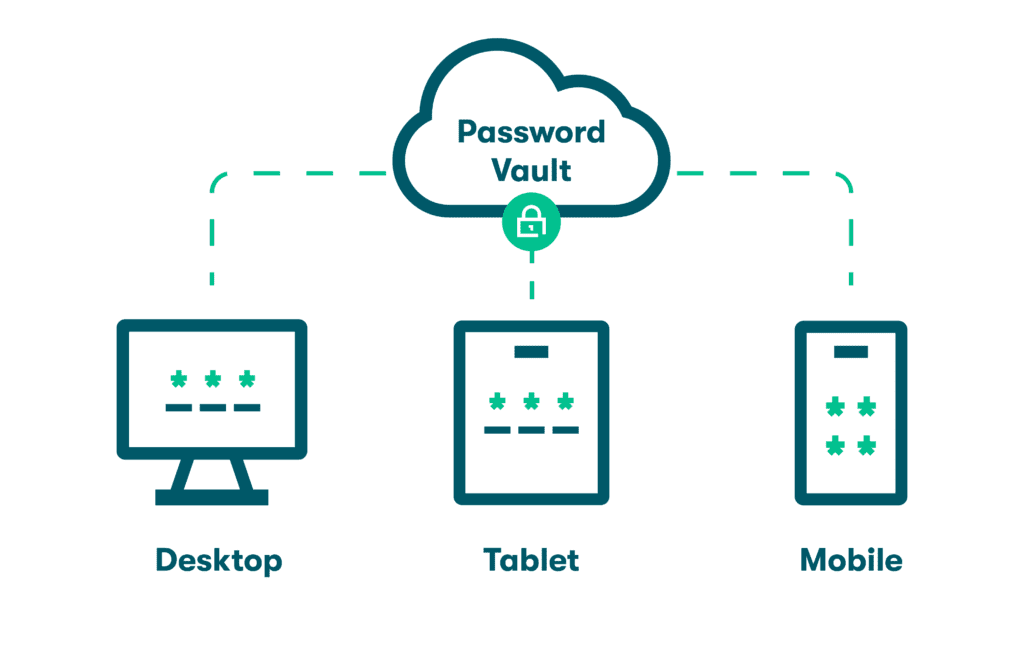
Password managers can ensure that you have strong, unique passwords for each of your linked accounts, while providing convenience of using only one password as the main user.
It remembers your passwords, so you don’t have to. Many password managers are also able to detect if your chosen passwords are weak, or if your privacy has been breached.
Checklist: Password Safety
| Task | Done? |
|---|---|
| Change all passwords to strong, unique ones | Yes/No |
| Use a password manager | Yes/No |
| Don’t share passwords with anyone | Yes/No |
| Don’t use social media accounts to sign in to other services | Yes/No |
Strong passwords and password managers are your first line of defense. They make it much harder for someone to guess or steal your login information. Changing passwords regularly and not reusing them keeps your accounts safer.
Smart Home Devices and Webcam Privacy
Smart home devices (like Alexa, Google Home, Ring Security cameras, smart cameras, or smart thermostats) can be used to monitor or harass you if someone else has access.
Tips for smart home safety:
- Change default passwords on all devices.
- Review who has access to your smart home accounts.
- Regularly check and delete voice recordings (see device settings).
- Use the physical mute button on smart speakers when not in use.
- Place smart speakers in common areas, not bedrooms.
- Cover webcams when not in use (a piece of tape works).
How to delete voice recordings:
Checklist: Smart Device Safety
| Task | Done? |
|---|---|
| Change passwords on smart devices | Yes/No |
| Review and remove unwanted account access | Yes/No |
| Delete stored voice recordings regularly | Yes/No |
| Use mute buttons and cover webcams | Yes/No |
Smart devices can make life easier, but they also create new risks. Taking control of your devices and who can access them helps protect your privacy.
Social Media Privacy Settings and Audience Control
Social media is a common place for TFGBV. Protecting your privacy on these platforms is essential. Key settings to check across all social media platforms include:
- Set your account to private. If you wish to keep it public, then aim to do regular checks of your following, and limit interactions.
- Only accept requests from people you know.
- Ignore or delete requests from strangers.
- Block or report suspicious accounts.
- Limit who can comment or message you.
- Turn off location tagging.
- Review tagged photos before they appear on your profile.
- Regularly audit your followers and remove suspicious accounts.
Social media privacy settings help you control who sees your information and interacts with you. Regularly reviewing and updating these settings keeps you safer from harassment and unwanted contact.
Checklist: Social Media Safety
| Task | Done? |
|---|---|
| Set accounts to private | Yes/No |
| Limit comments and messages | Yes/No |
| Turn off location tagging | Yes/No |
| Review tagged photos and followers | Yes/No |
Social media privacy settings help you control who sees your information and interacts with you. Regularly reviewing and updating these settings keeps you safer from harassment and unwanted contact.
Two-Factor Authentication (2FA) and Authenticator Apps
Two-factor authentication (2FA) adds an extra step when you log in. After entering your password, you’ll need to enter a code sent to your phone or generated by an app. This makes it much harder for someone to break in, even if they know your password. Many apps use 2FA for online security.
Tips for 2FA Apps:
- Use an authenticator app instead of SMS if possible.
- Save backup codes in a safe place in case you lose your phone.
- Don’t share your 2FA codes with anyone.
Please keep in mind that 2FA requires you to have more than one device, or for you to be able navigate multiple apps. Sometimes, people with disabilities have a difficult time using these systems because they are not built with access in mind.
Example: When logging into her email, Priya enters her password and then a code from her authenticator app. Even if someone knows her password, they can’t get in without her phone.
Checklist: 2FA Setup
| Task | Done? |
|---|---|
| Enable 2FA on all important accounts | Yes/No |
| Use an authenticator app, not just SMS | Yes/No |
| Save backup codes securely | Yes/No |
2FA is like adding a second lock to your door. Even if someone has your key (password), they can’t get in without the code from your phone. Authenticator apps are safer than SMS because texts can be intercepted or stolen.
Reflect
Based on this chapter, do you have secure devices and accounts?
What can applications and organizations do to make online security more accessible for you? For other women with disabilities?
Leave suggestions in the comments below!
Resources
-
National Network to End Domestic Violence. (2022). Stalkerware: Phone Surveillance & Safety for Survivors. Safety Net Project. https://www.techsafety.org/spyware-and-stalkerware-phone-surveillance#:~:text=Stalkerware%20can%20also:%20*%20Turn%20on%20your,usage%20*%20The%20other%20person’s%20suspicious%20behavior
- National Network to End Domestic Violence. (2018). Evidence Collection Series: Mobile Spyware. Safety Net Project. https://www.techsafety.org/spyware-evidence

Feedback/Errata